Welcome & signing in
This is the first page you land on. From here you create a free account or log in. Once you sign in as a parent, SundaySaturday takes you straight to My Kids — your home base for everything below.
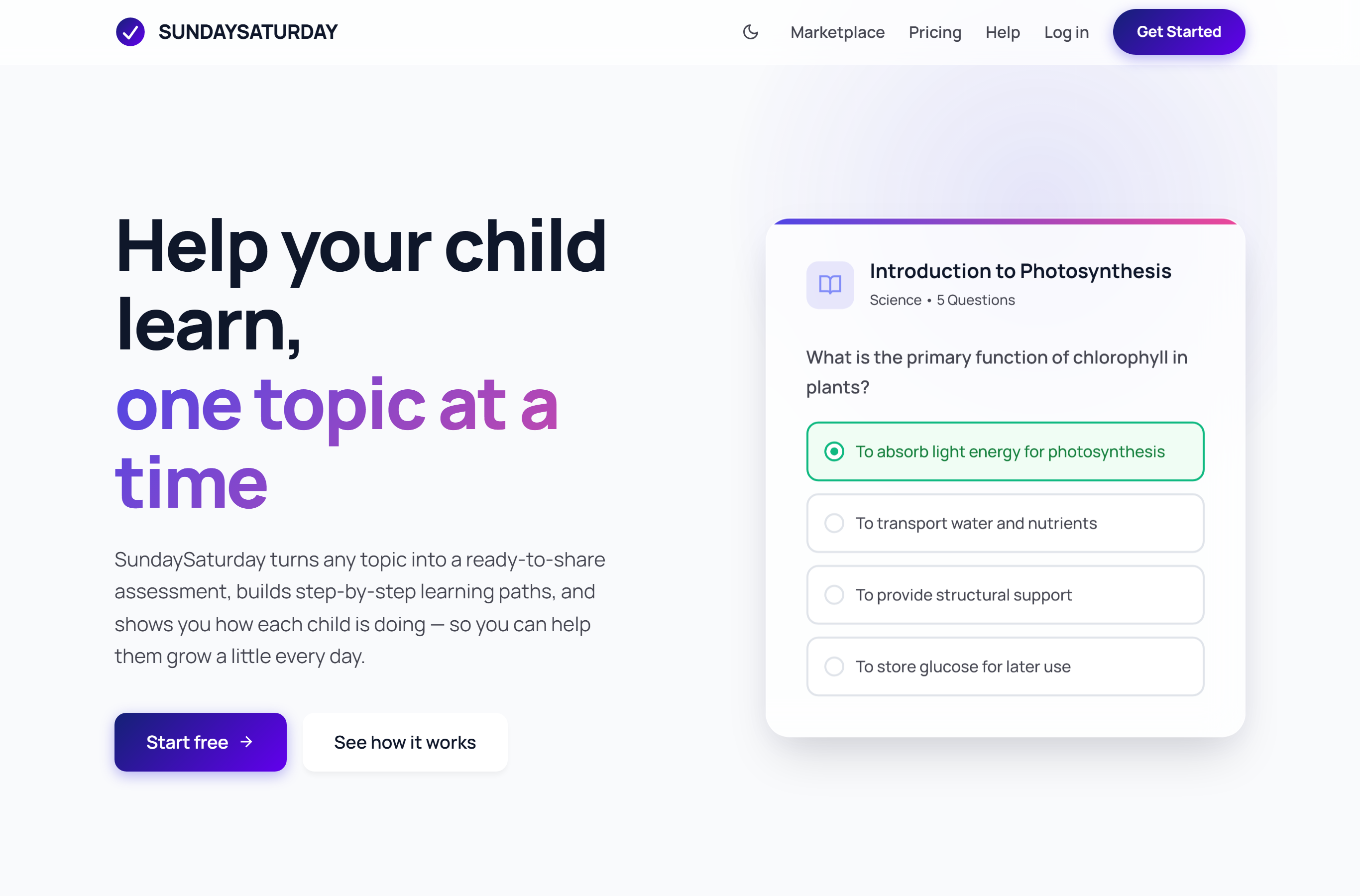
- 1Open sundaysaturday.com. Tap Get Started to make a free account, or Log in if you already have one.
- 2After you log in, SundaySaturday drops you straight into My Kids. That's the next section below.
My Kids — your Parents Corner
My Kids is your daily starting point. Add each child once, then send assessments, watch streaks build, and celebrate their wins — all from one screen.
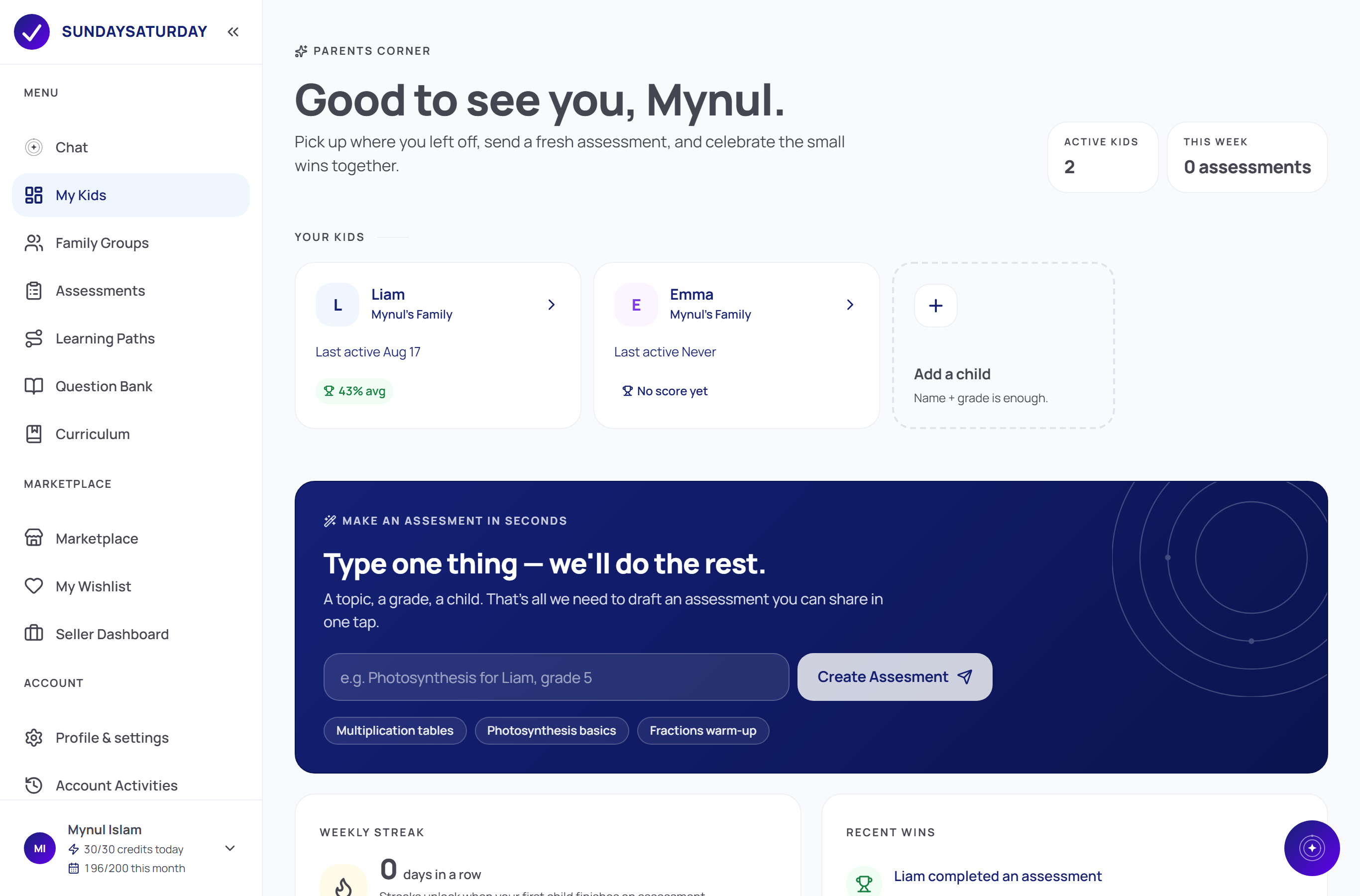
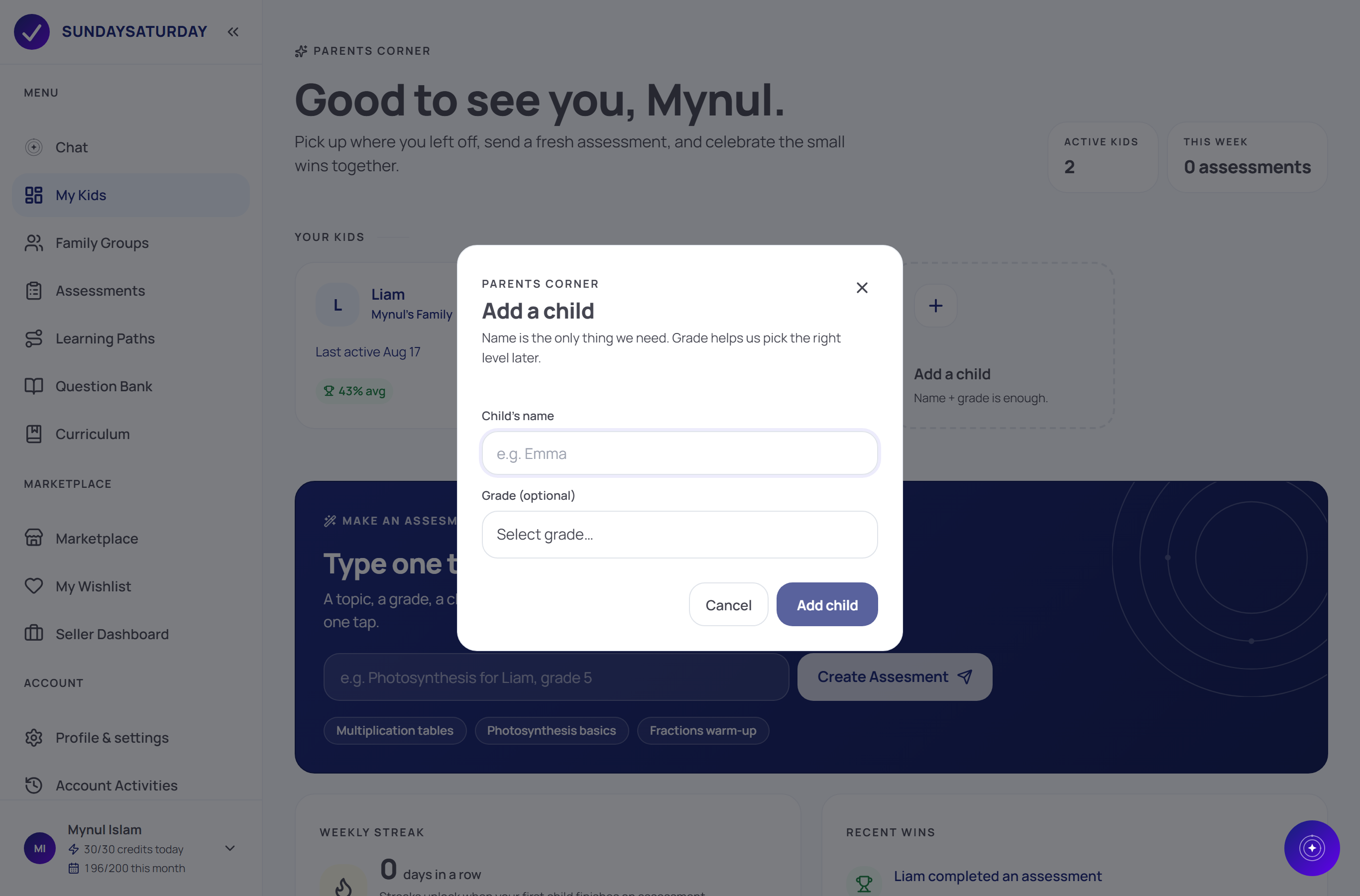
- 1Tap the Add a child card. A small pop-up opens.
- 2Type your child's name (like “Emma”) and, if you want, their grade. Tap Add child.
- 3Your child now appears under Your Kids. Tap their card any time to see progress, streaks and past assessments.
- 4To make something for them, use Type one thing — we'll do the rest: write a topic, then tap Create Assessment.
Family Groups
Your family lives together in one group. See every child, the assessments and learning paths they've been given, and how far along each one is.
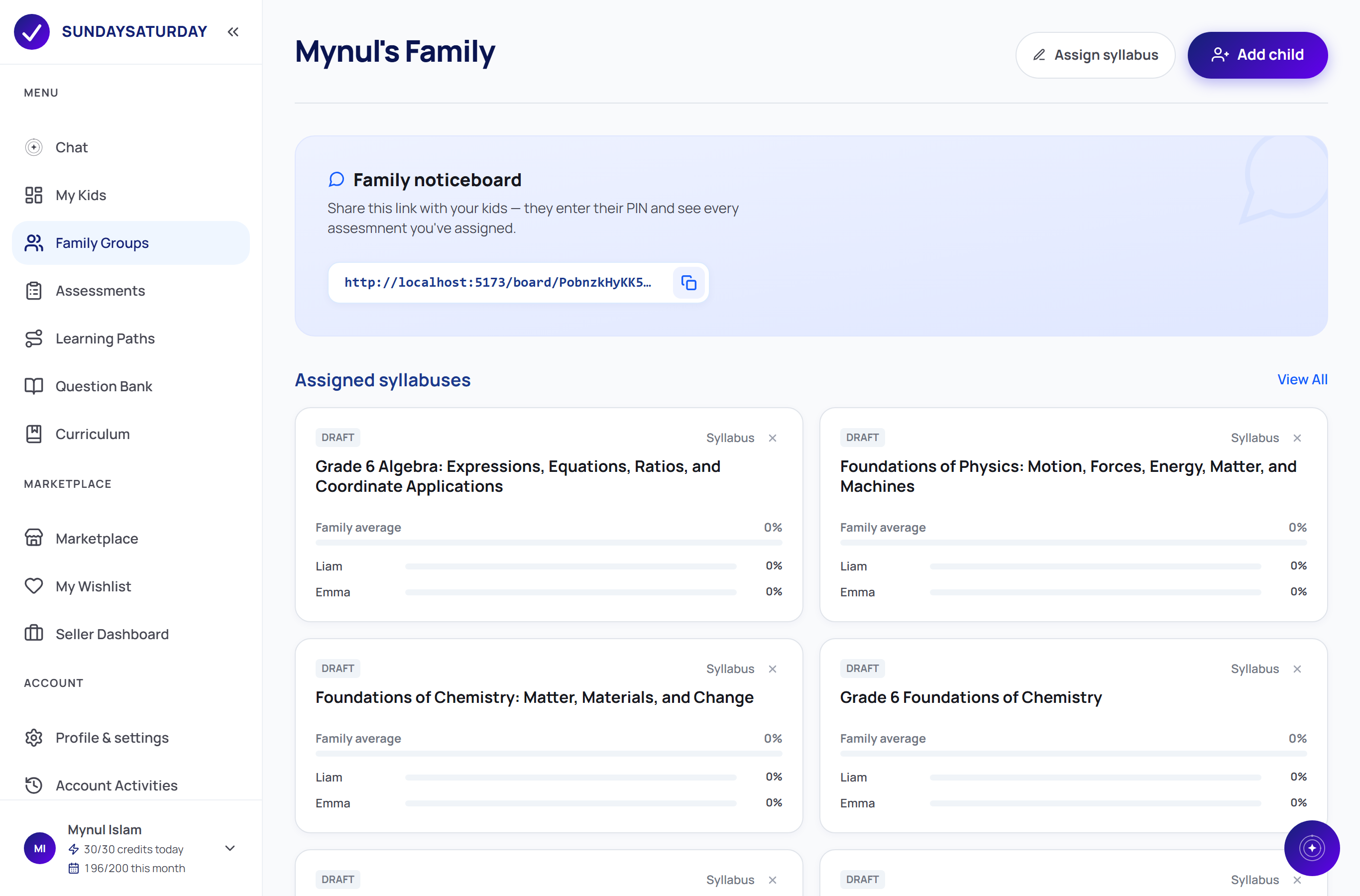
- 1Open Family Groups to see everyone under one family (for example, “Mynul's Family”).
- 2Each child has a private PIN under Your kids. Tap the eye icon to reveal it.
- 3Share the Family noticeboard link with your kids. They enter their PIN and see every assessment you've assigned — no account needed.
- 4Use Assign syllabus or Assign Quiz to give the whole family a learning path or assessment at once.
Assessments
Type one line — a topic and a grade — and SundaySaturday drafts an assessment for you. Tweak the questions, publish it, then share it with your child in a single tap.
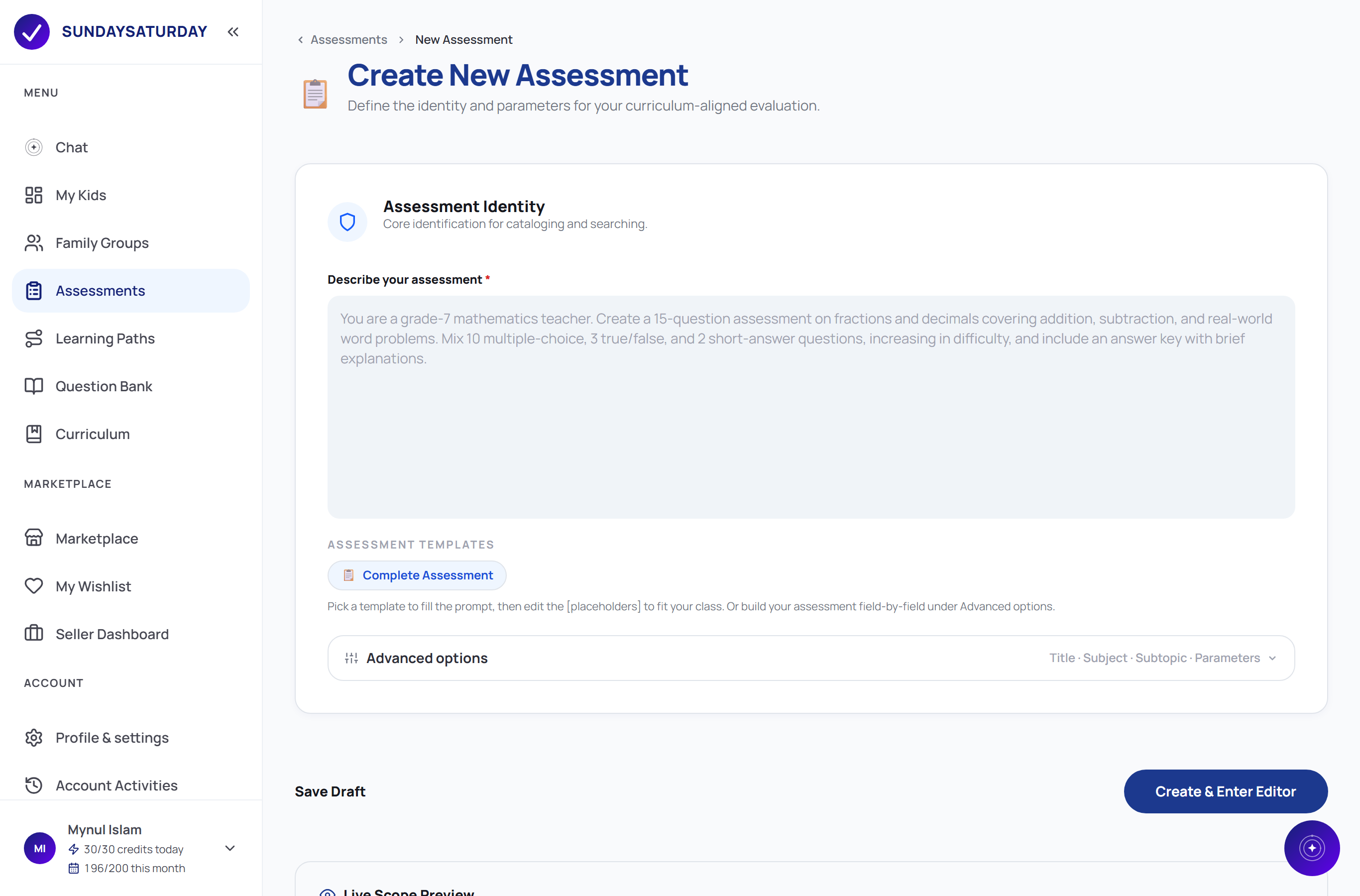
- 1On My Kids, type a topic into Type one thing — we'll do the rest (for example, “Photosynthesis for Emma, grade 5”) and tap Create Assessment. You can also start from Assessments → + Create New.
- 2Describe it in one line, then tap Create & Enter Editor. SundaySaturday writes the questions for you in a few seconds.
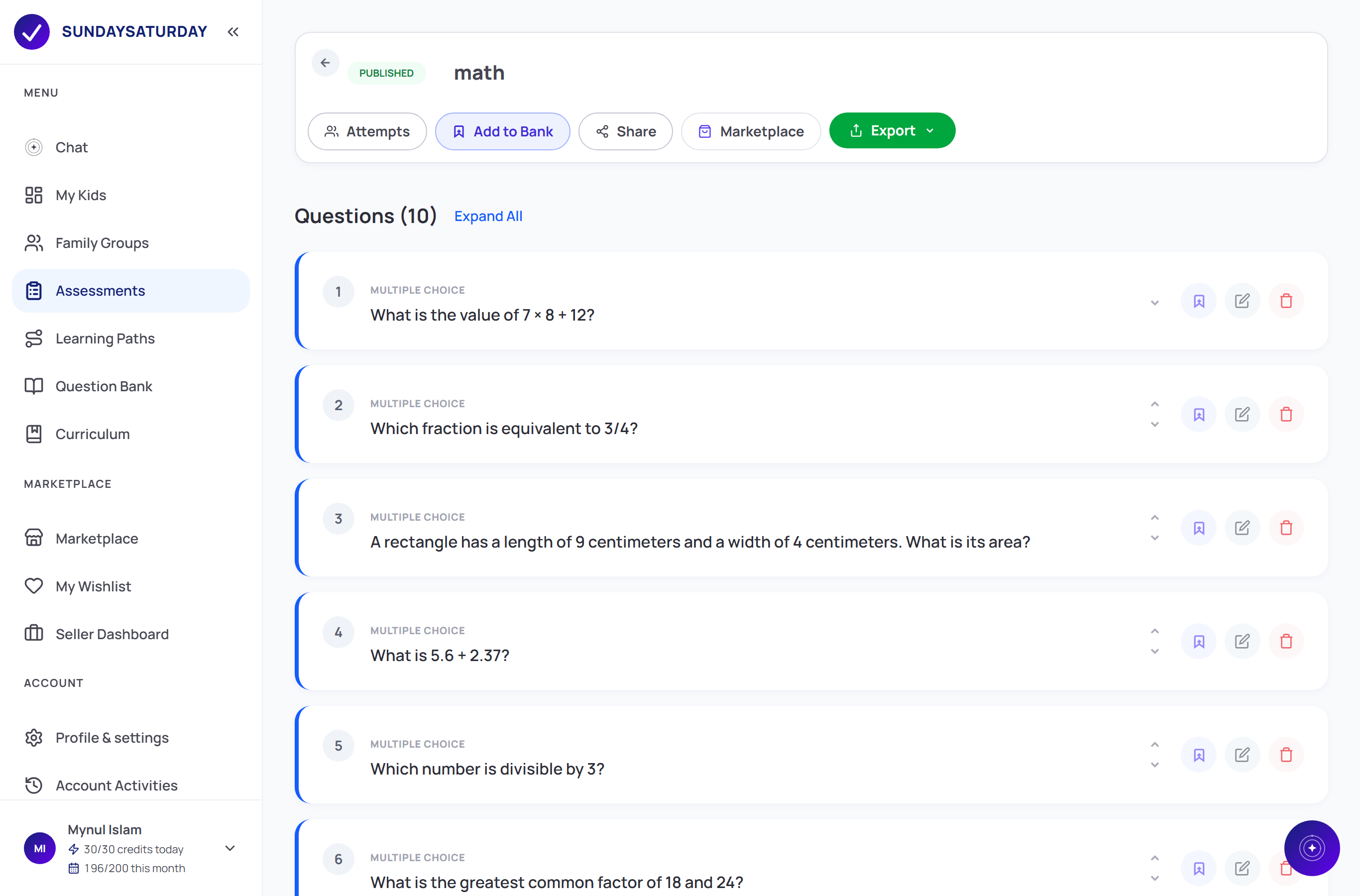
- 3Skim the questions. Edit or remove any you want, then tap Publish to lock it in.
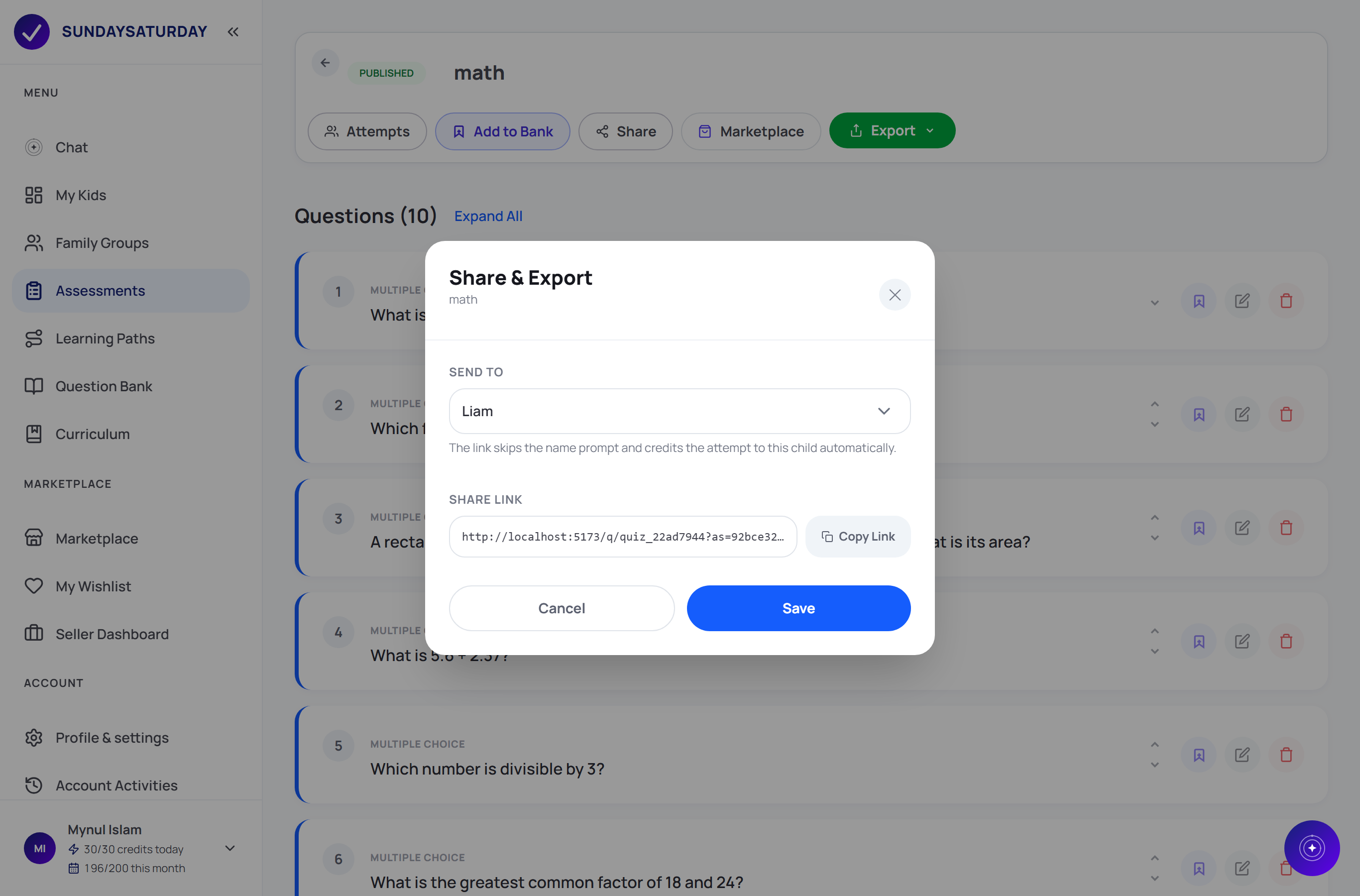
- 4Tap Share, pick your child, and copy or send the link. When they finish, their score comes back to you automatically.
Learning Paths
A learning path breaks a big goal (say, “Grade 5 fractions”) into bite-sized topics, each with its own assessment — so your child learns step by step instead of all at once.
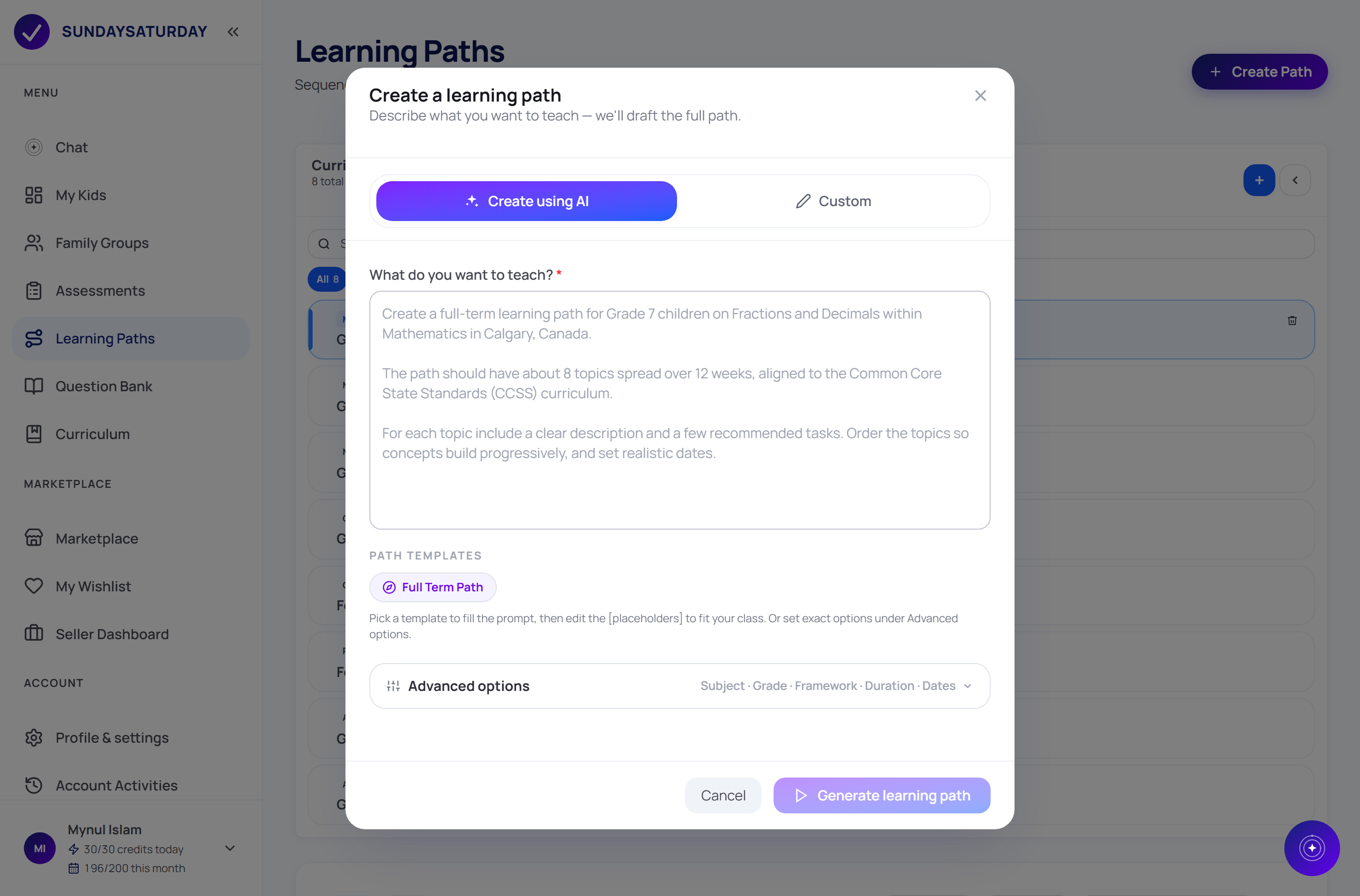
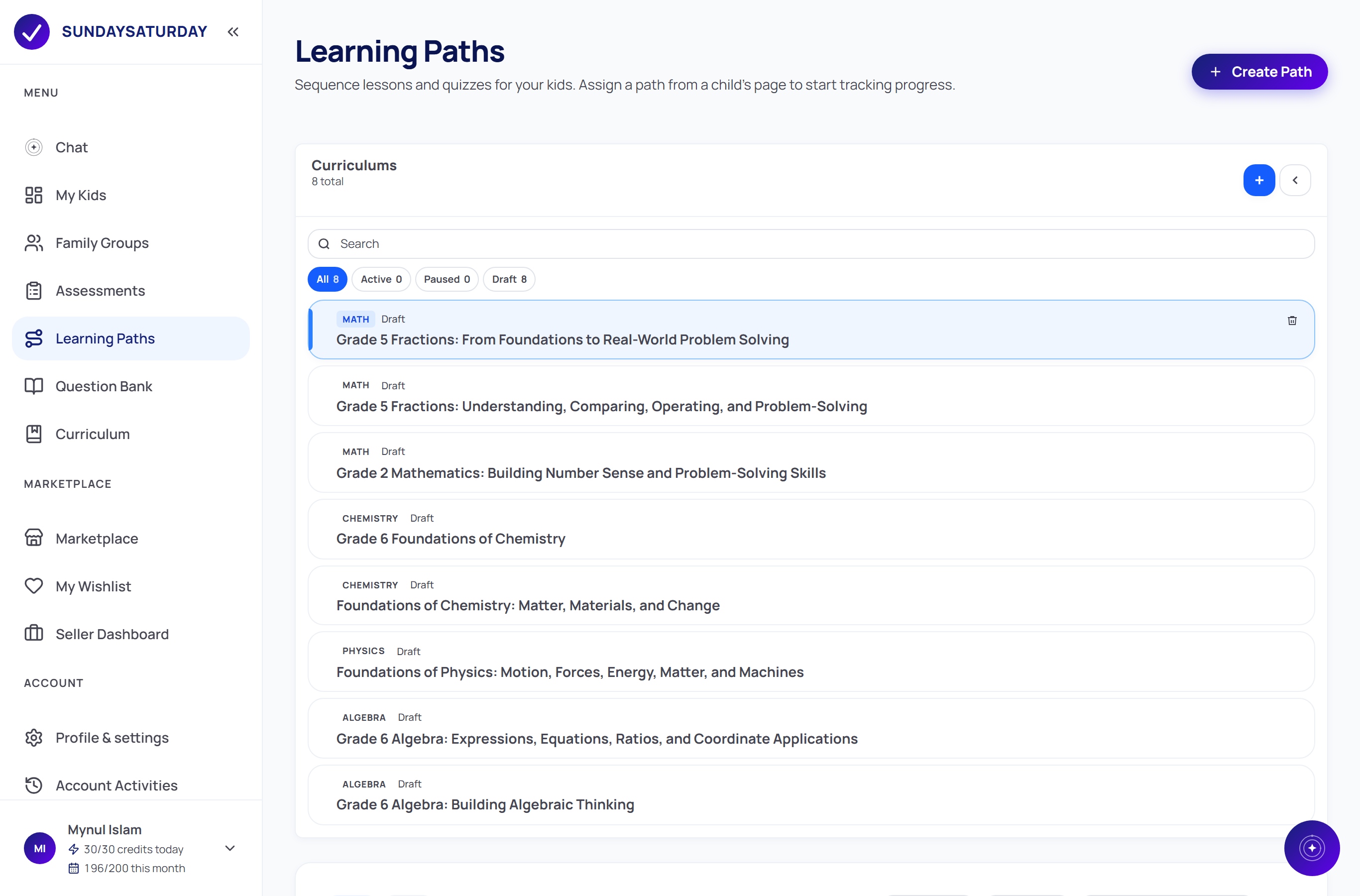
- 1Open Learning Paths, tap Create Path, then choose Create using AI.
- 2Describe what you want to teach (like “A Grade 5 path on fractions for my child”), tweak Advanced options if you like, then tap Generate learning path.
- 3In a few seconds you get a full path — topics in order, each with its own plan. Edit, reorder, or add topics however you like.
- 4Tap Assign and pick your child to start it. Their progress then shows up back on My Kids.
Question Bank
Found a question you love? Save it to your Question Bank and reuse it in any future assessment. It's your personal, growing library of the best questions.
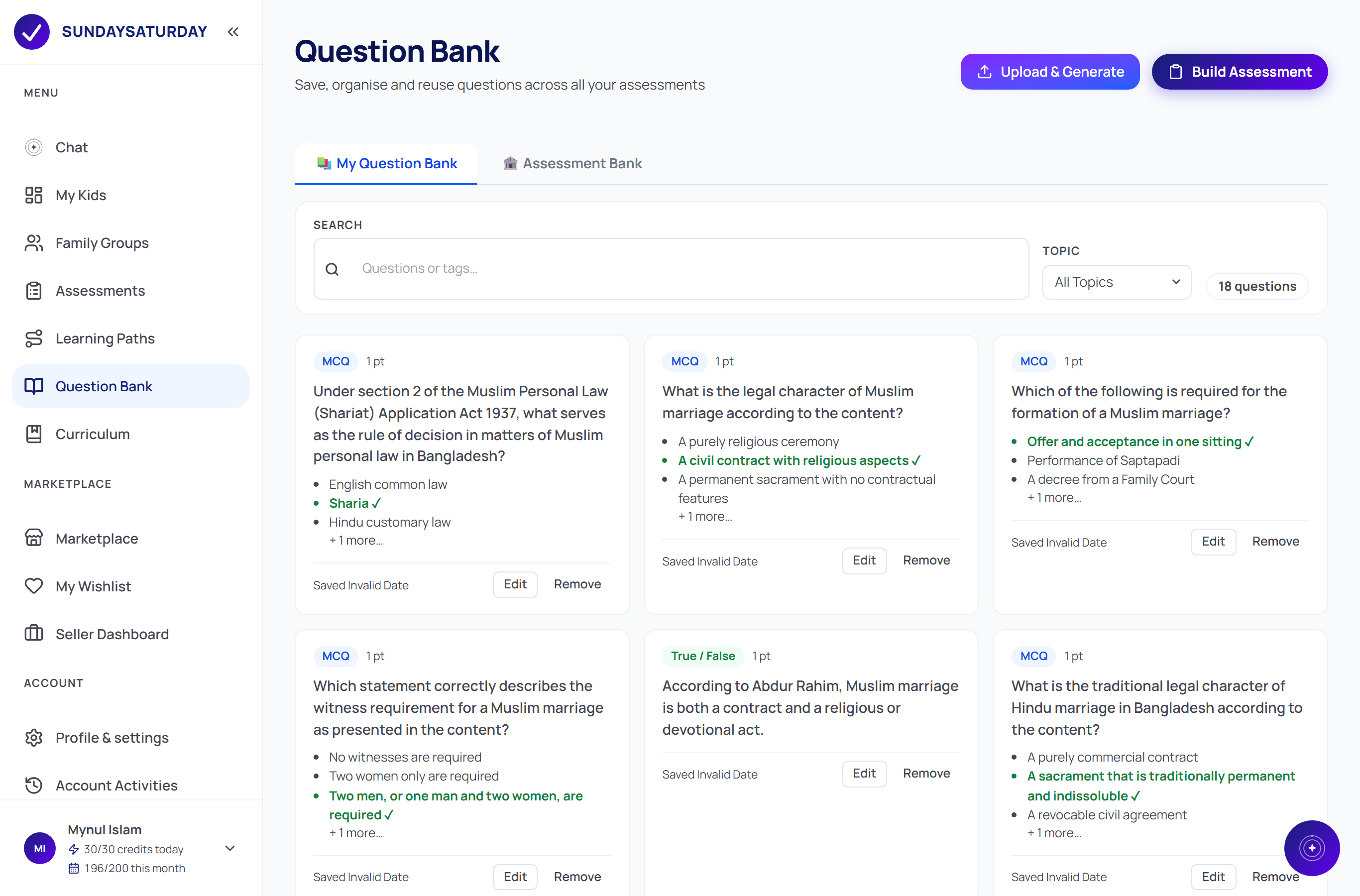
- 1While reviewing any assessment, tap Add to Bank on a question you'd like to keep.
- 2Find everything you've saved under Question Bank → My Question Bank.
- 3Use Search or the Topic filter to find a question fast.
- 4Tap Build Assessment to turn a set of saved questions into a brand-new assessment.
Curriculum library
Not sure where to start? Browse ready-made curriculum templates by subject and grade, then copy one into your own workspace with a single click.
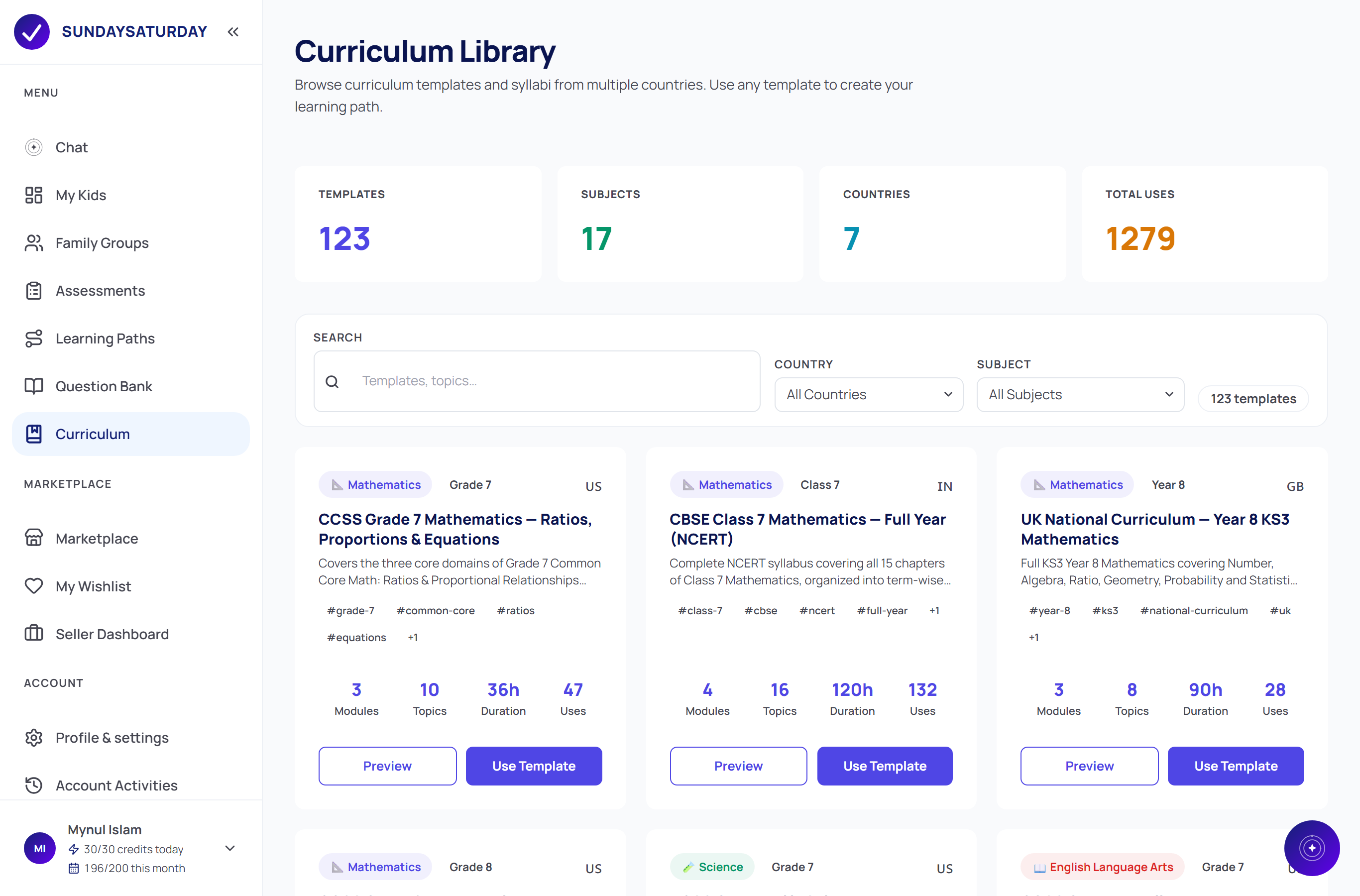
- 1Open Curriculum and browse the templates. Filter by country, subject or grade to narrow things down.
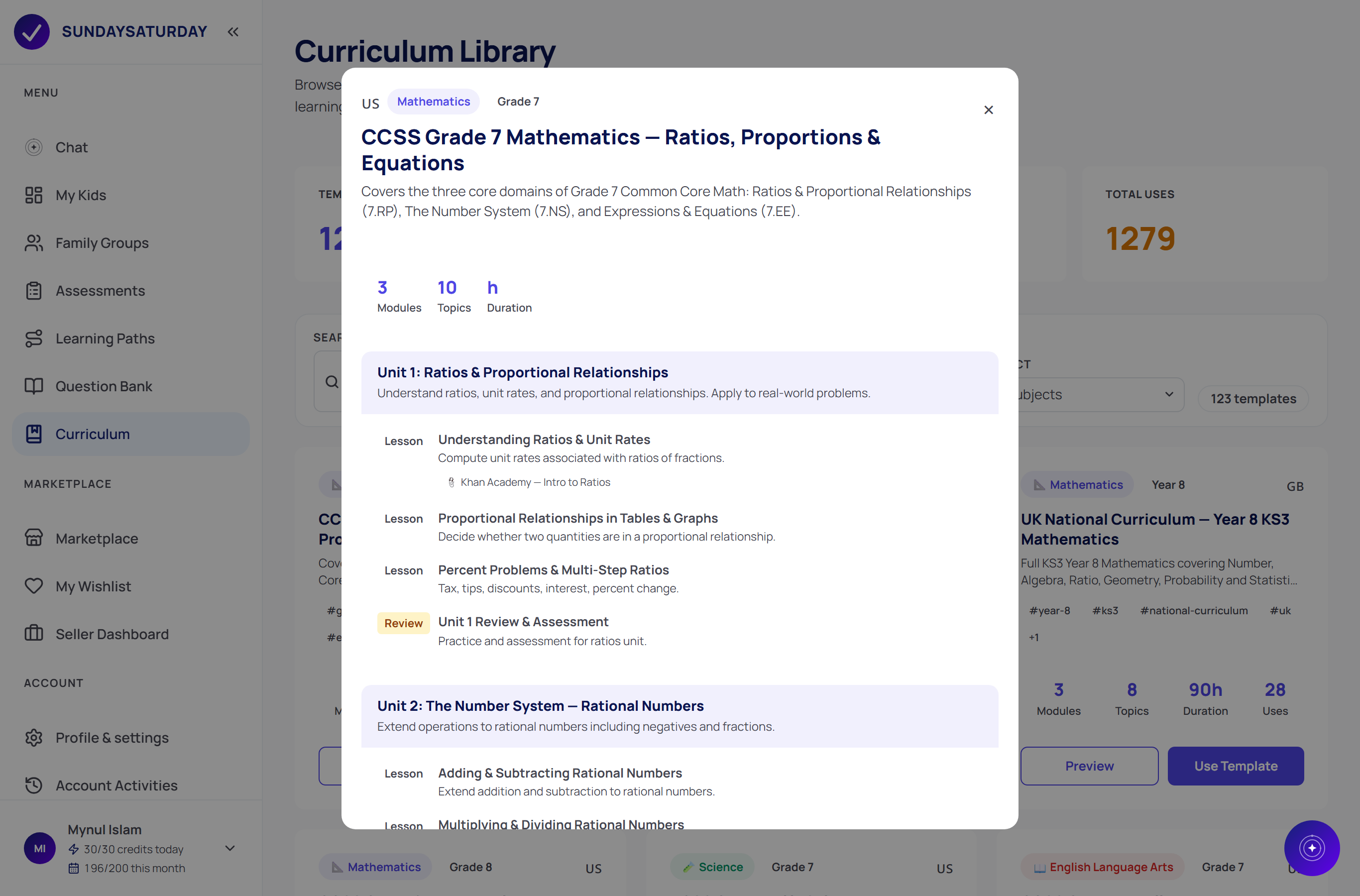
- 2Tap Preview to see exactly what a template covers — its units, lessons and how long it takes.
- 3Happy with it? Tap Use Template to copy it into your own workspace as a learning path you can edit and assign.
Marketplace
The Marketplace is where families share their work. Browse ready-made learning paths and assessments from other parents — most are free — save your favourites, and publish your own for others to use.
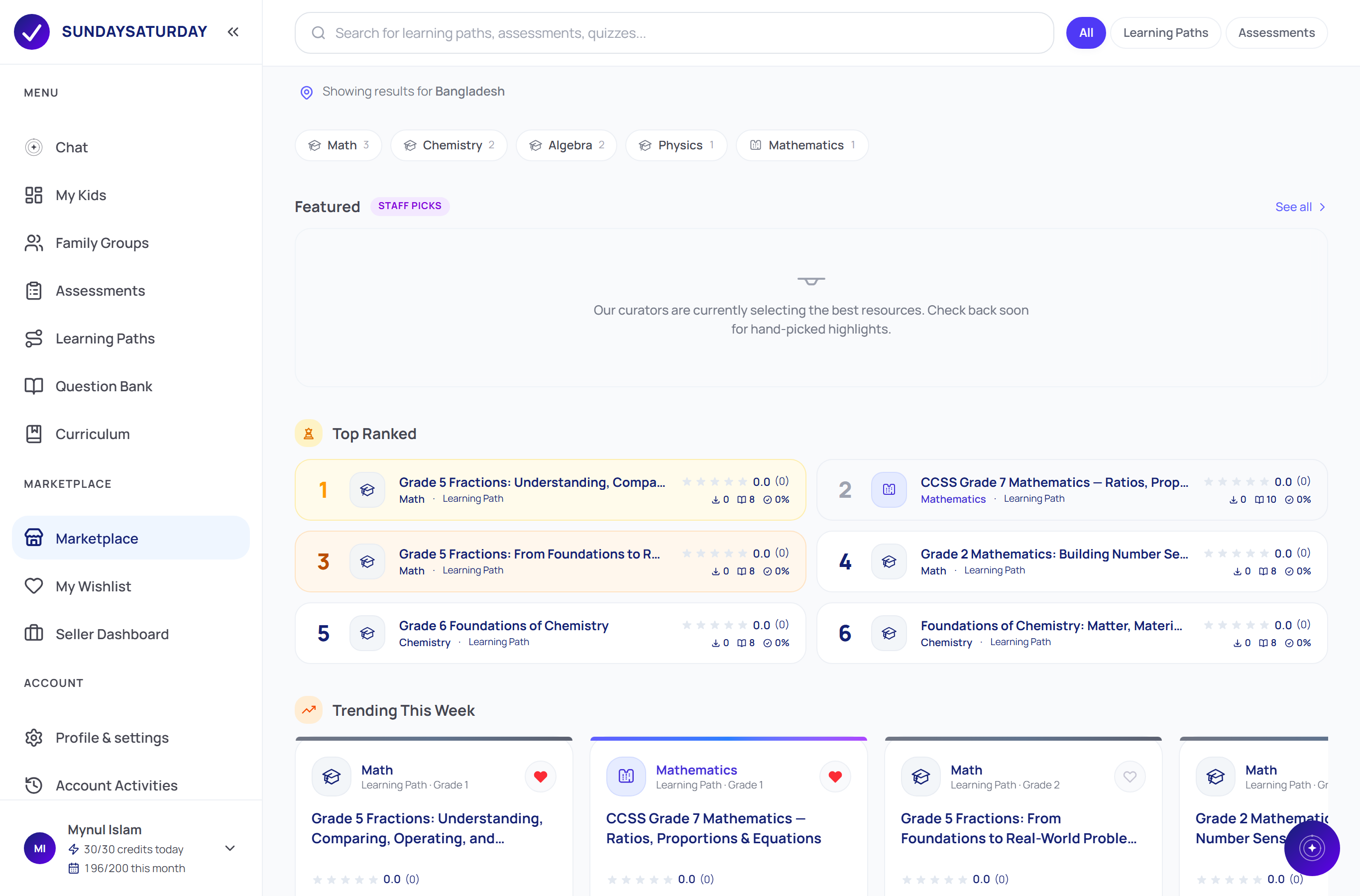
- 1Open Marketplace. Use the search bar or the subject and type filters to find learning paths and assessments.
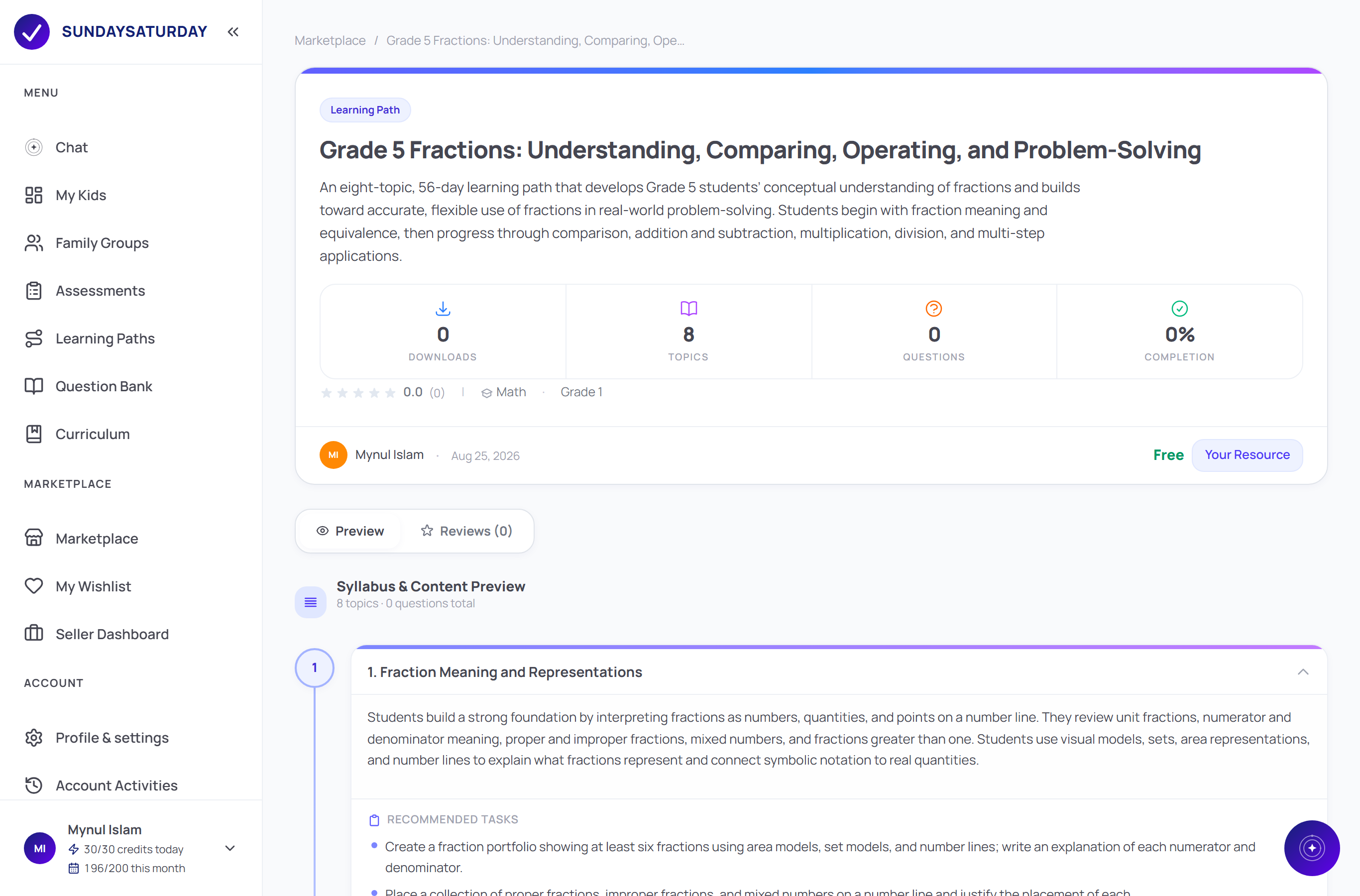
- 2Tap any card to open its listing — preview the full syllabus, ratings and author before you use it.
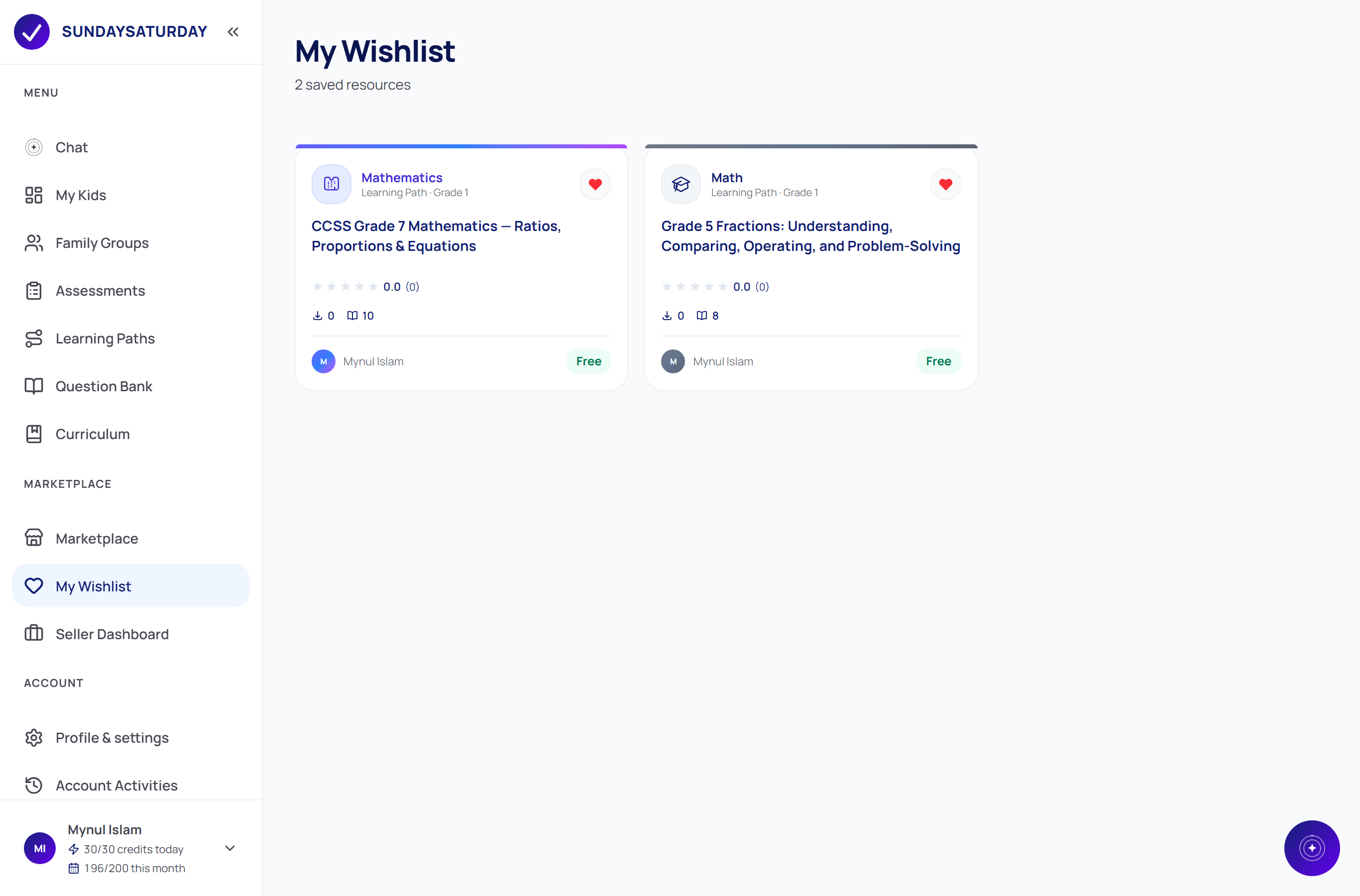
- 3Tap the heart to save something to My Wishlist, or use a free resource to copy it straight into your workspace.
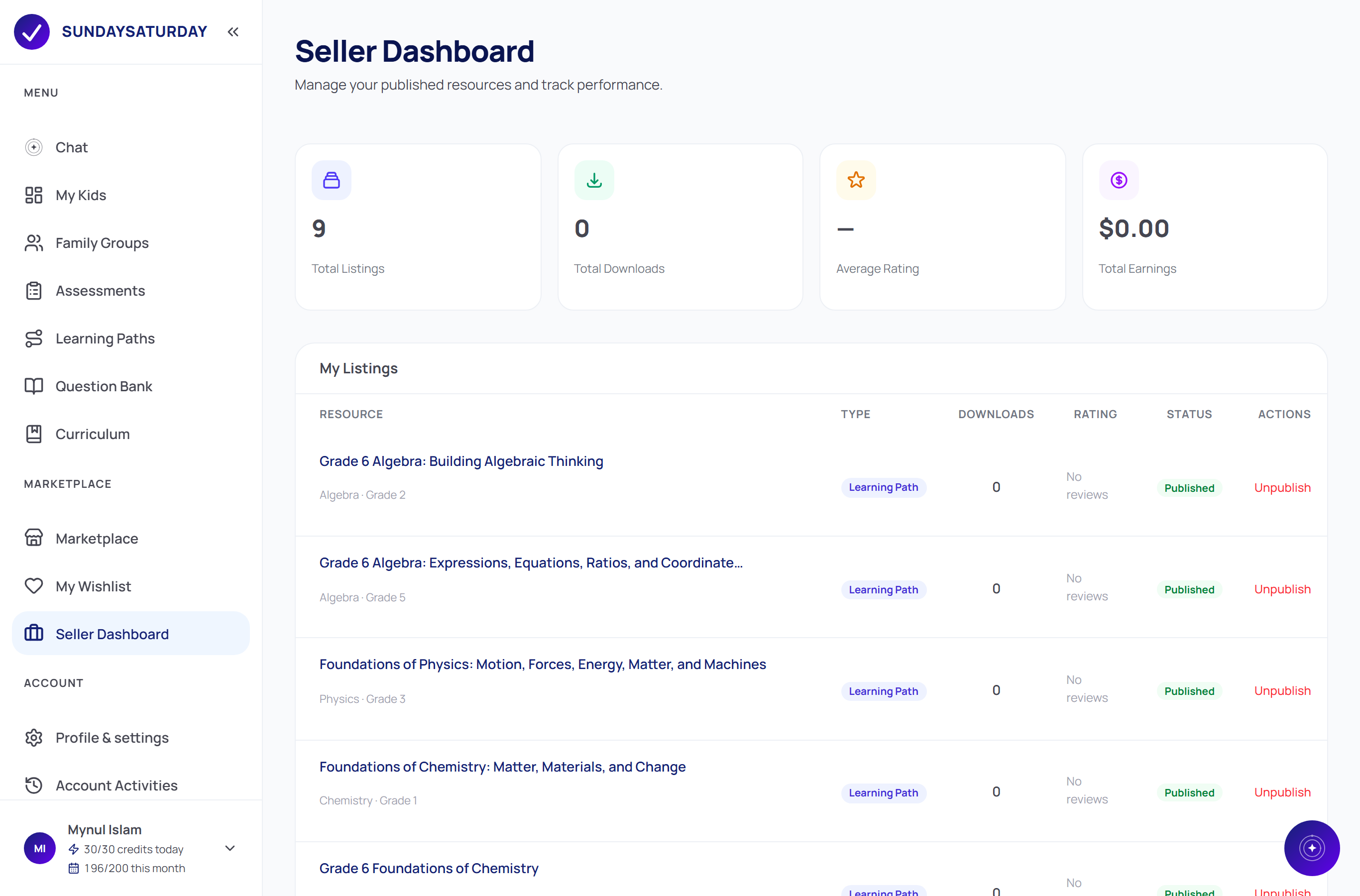
- 4To share your own, open a learning path or assessment and tap Add to Marketplace. Track how it does under Seller Dashboard.
The SundaySaturday assistant
Your assistant lives beside every page. Ask it about your kids, have it make a quiz or a learning path, or send a child a login link — in plain language. It uses the same tools you do, so whatever it does shows up in your account.
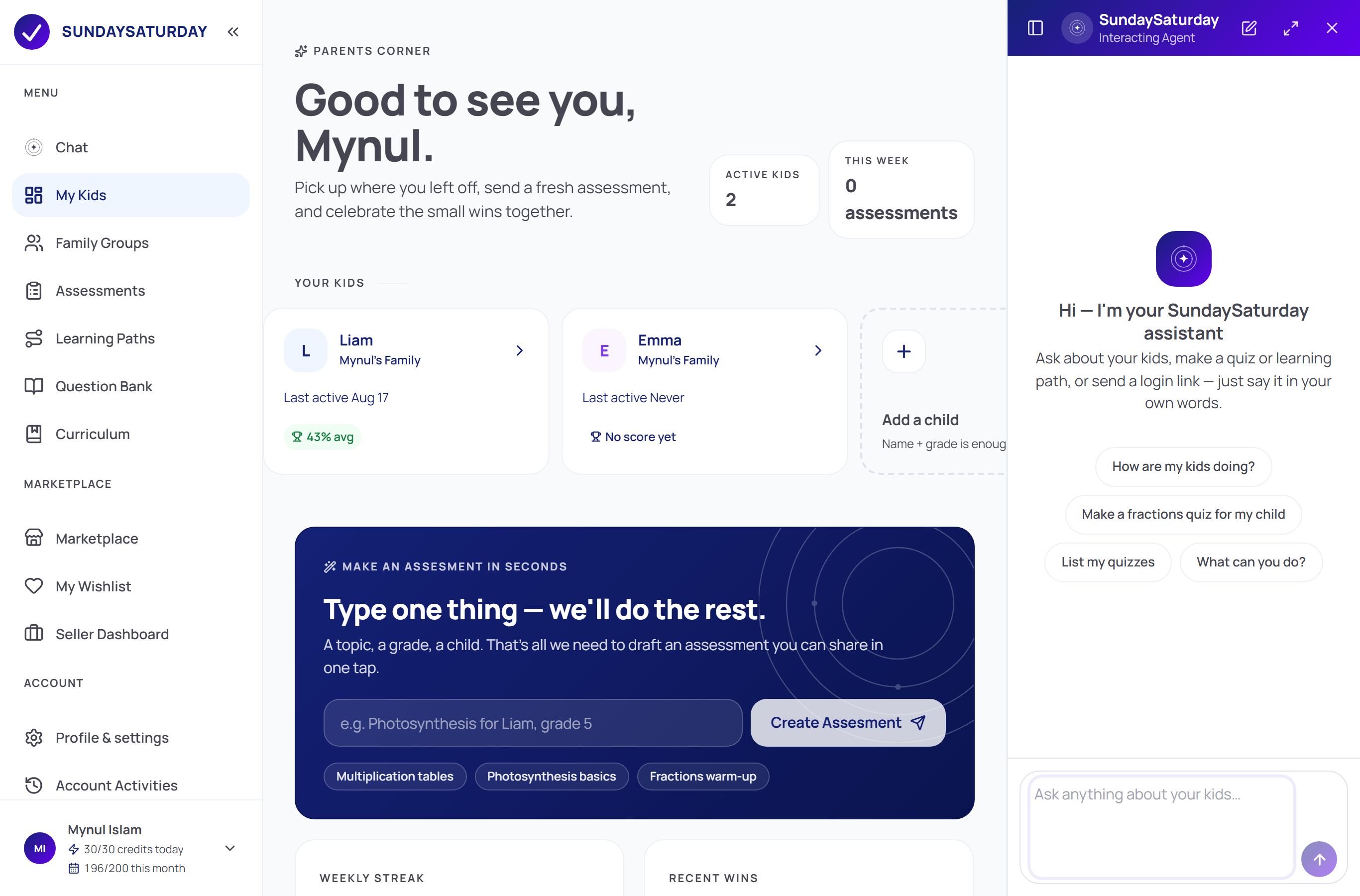
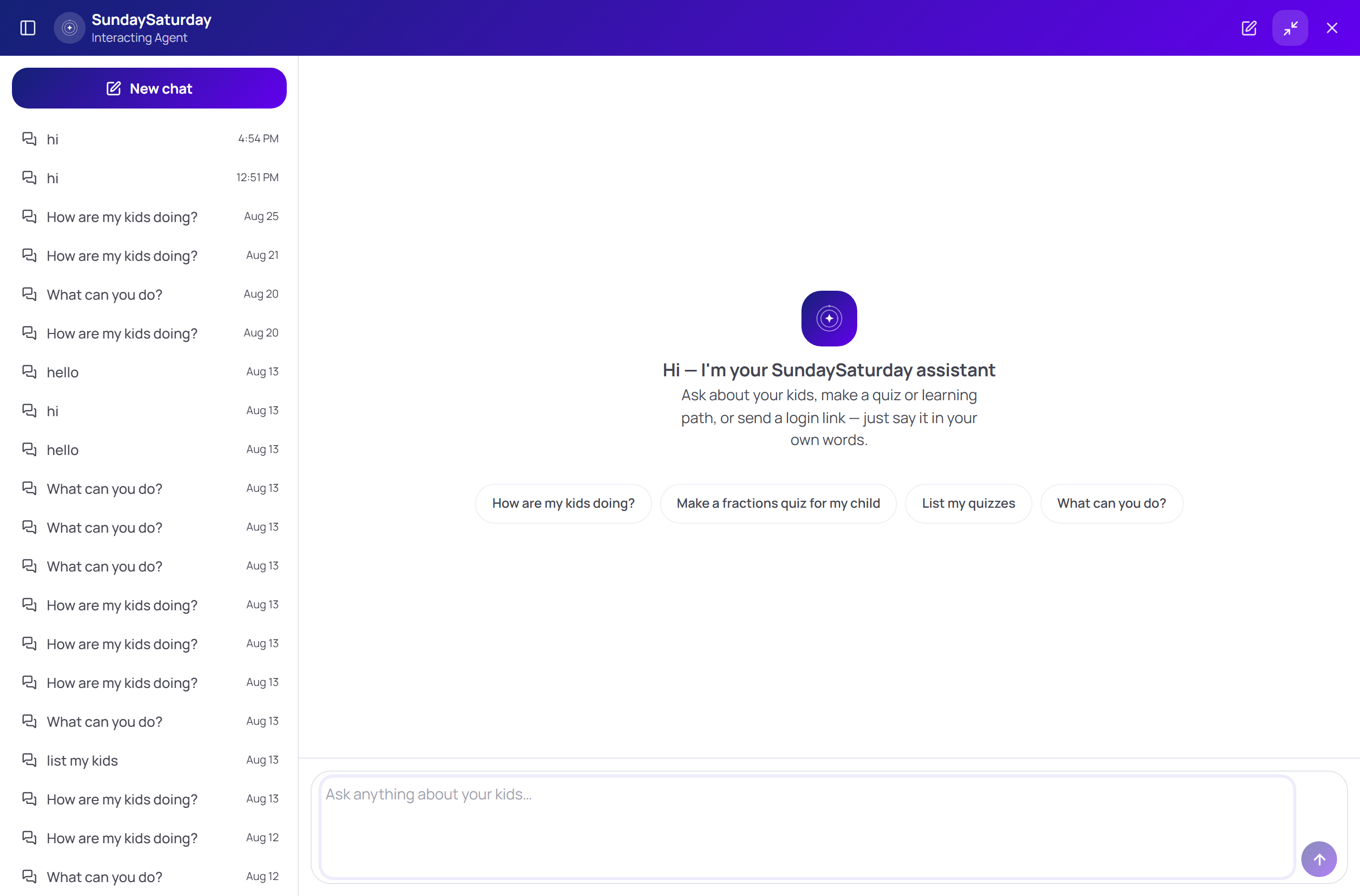
- 1Tap Chat in the menu (or the floating button) to open the assistant beside whatever page you're on.
- 2Type a request in plain words — “How are my kids doing?”, “Make a fractions quiz for my child”, or “Send Liam a login link” — or tap one of the suggestions.
- 3It can answer questions about progress, build quizzes and learning paths, and send login links. Anything it creates appears in your account, just as if you'd made it yourself.
- 4Use the expand icon for a full-screen chat. Your conversations are saved, so you can always come back to them.
Ready to try it with your child?
It takes about two minutes to add your first child and send an assessment.
Get started free